After a call, RingPilot creates a ticket, lead or task in your own system, RingPilot recognises the caller by their phone number.
Open Integrations on your computer
Log in at app.belbuddy.eu, choose Settings and then Manage integrations.
Choose your system
Under Ticketing system or CRM, choose your system. The required fields appear automatically. Below you will find, for each system, what to fill in and where to find it.
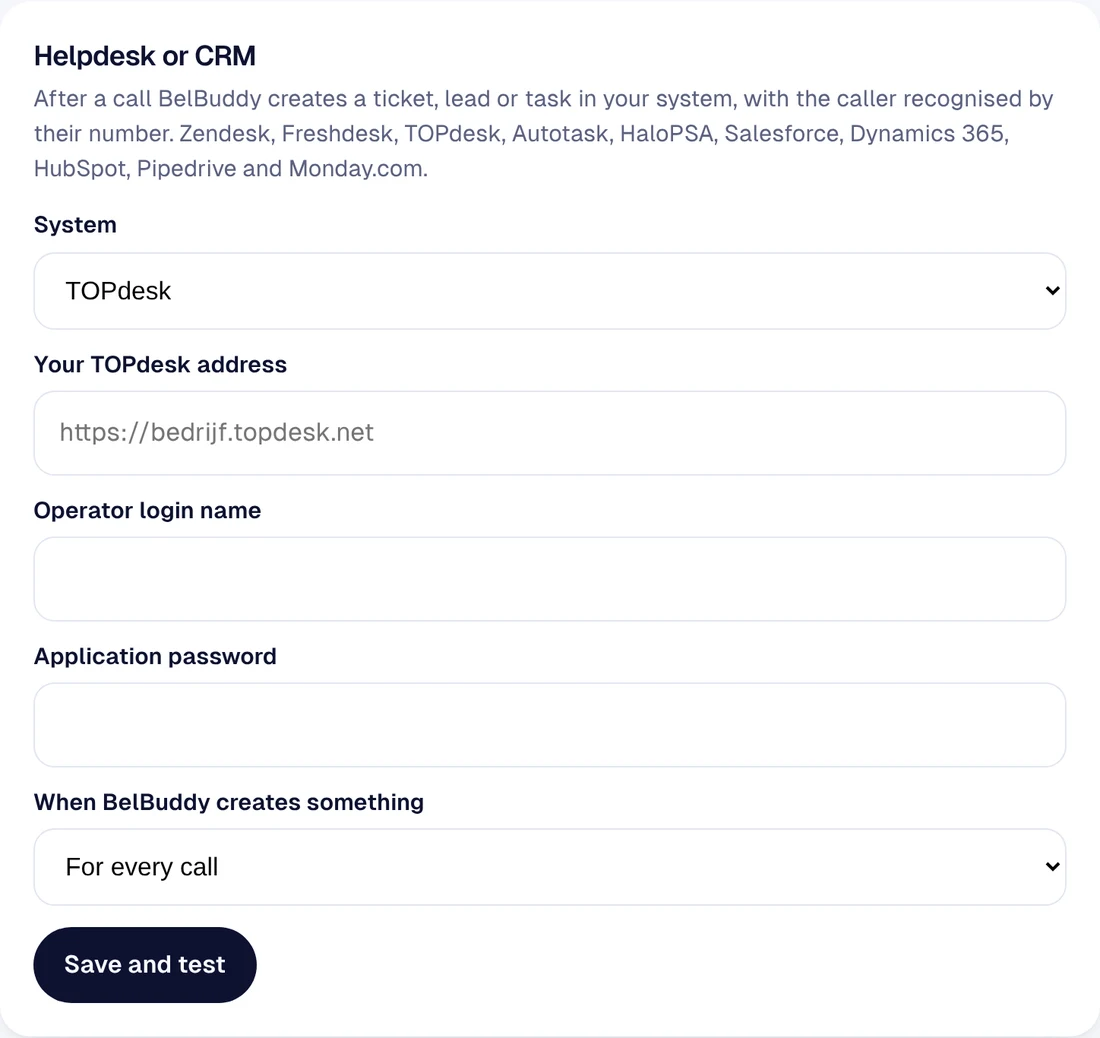
Choose when RingPilot creates something
For every call, or only for a callback request.
Save and test
RingPilot immediately checks whether the integration works. For some systems, you then also choose the status, priority or queue.
What to fill in for each system
| TOPdesk | The address of your TOPdesk, an operator's login name and an application password (in TOPdesk, under that operator's settings). |
|---|---|
| Autotask | The email address of an API user, the secret and the integration code (tracking identifier). You then choose the status, priority and queue. |
| HaloPSA | The address of your HaloPSA, and the client ID and client secret of an API application (client credentials). The tenant only for shared hosting. |
| Freshdesk | The name of your environment (from company.freshdesk.com) and your API key from your profile settings. You choose the priority of new tickets. |
| HubSpot | A service key (Development › Keys › Service keys) or the token of a private app. You choose what RingPilot creates: the call on the timeline (scopes: read and write contacts), a ticket (also the tickets scope) or a lead (also read and write leads; without that scope it becomes a deal). Choose whether unknown callers are added as new contacts. |
| Salesforce | Your My Domain address, and the consumer key and consumer secret of an External Client App with the Client Credentials Flow and a Run As user. Choose what RingPilot creates: a task, a lead or a case. |
| Microsoft Dynamics 365 | The address of your Dynamics environment, the tenant ID, and the client ID and client secret of an app registration. Choose: a phone call on the contact, or a case. |
| Pipedrive | Your API token: Personal preferences › API. Choose: a lead with a note, or a call on the person. |
| Monday.com | Your API token (Profile › Developers › My access tokens) and the board number, from the address bar: …/boards/1234567890. |
Reading your website
RingPilot reads the public pages of your website and answers callers' questions from them, for example about products and prices. It reads them again every night. Pages behind a login are not read. Under Connections with your software › Read your website, enter your website address and click Save. Part of the Team plan.
Online shop
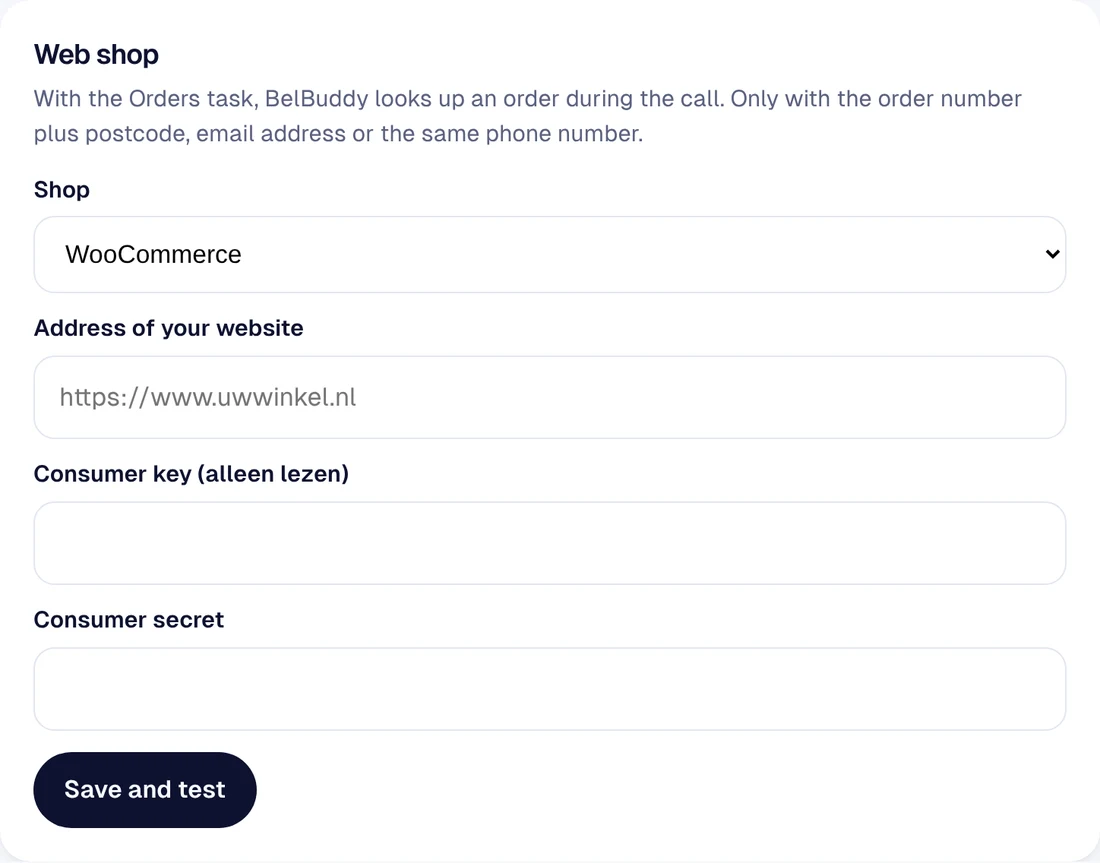
For the Orders task. Under Online shop, choose your shop.
| Shopify | The address of your shop and the client ID and client secret of your own app. How to create that app is explained below. |
|---|---|
| WooCommerce | The address of your website, and a consumer key and consumer secret with read-only permissions (WooCommerce › Settings › Advanced › REST API). |
Connecting Shopify
Create the app
In the Shopify Dev Dashboard, go to Apps and click Create app. Give the app a name, for example RingPilot.
Give permission
Give the app permission to read orders only: read_orders. Nothing more is needed.
Install
Install the app on your shop.
Choose custom distribution
Open Distribution for the app and choose Custom distribution. Without this step Shopify does not release the orders.
Enter the details in RingPilot
The client ID and client secret are under the app's Settings. Enter them in RingPilot under Online shop, together with your shop address (ending in myshopify.com), and click Save. RingPilot then checks straight away that it is allowed to read orders.
Do you already have your own app with an Admin API token? Then you only need to enter that token.
Is your system not listed? Use webhooks with Zapier, Make or n8n, or the API.
Need help?
Email [email protected] or ask your question in the chat at the bottom right. We are happy to help, including with the setup.